
Anyone who has programmed a mid-sized project in TIA Portal knows the software eats up screen space. The project tree, the program editor, the hardware catalog, the properties, the network view, the watch tables and the information window all compete for the same room. Choosing the right monitor is not a whim: it affects how long it takes to find a block, compare two programs and debug online. Here are practical guidelines for each working scenario.
What Siemens Asks For and What You Really Need
Siemens’ official requirements recommend a resolution of 1920×1080 (Full HD). You can check them in the TIA Portal requirements documentation and in our summary of the TIA Portal V21 software and hardware requirements. That resolution is a starting point, not the goal. You can work on a 15.6″ Full HD screen, but at every step you have to close and open panels just to see the code.
Programmers’ day-to-day experience points the same way: the more usable space you have, the less time you lose managing windows. What matters is not just the inches, but the combination of size and resolution.
Laptop for Work on the Plant Floor
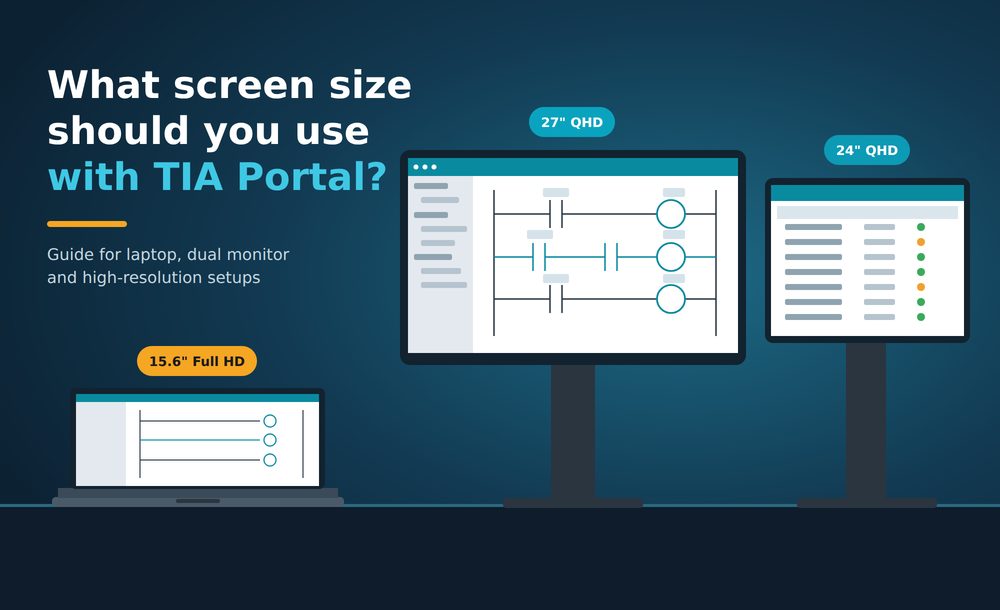
During commissioning you work inside the cabinet, in a control room or standing next to the machine. Portability rules here, and the sweet spot is a 15.6-inch Full HD screen. A 17″ laptop offers more surface area, but it weighs more and is awkward to carry along with cables, tools and documentation. If you are choosing equipment, our guide on what laptop you need for TIA Portal V18 will help.
If the laptop is going to be your only screen, look for a matte panel (because of glare on the plant floor), good brightness and, if possible, a resolution slightly above Full HD. Keep in mind that small screens with very high resolutions require adjusting Windows scaling, and that is where the problems described below begin.
Fixed Office Workstation: Two Monitors
For daily work, the best setup is two monitors of 24 to 27 inches, ideally with QHD resolution (2560×1440). A layout that works well:
- Main monitor: program editor (LAD, FBD, SCL), HMI editor or device view, with the project tree on one side.
- Secondary monitor: hardware catalog, watch tables, properties, cross-references, PDF documentation, the device manual or your email.
With this layout you can keep the block you are editing and the variables you are monitoring online open at the same time, without switching tabs.
A Single Monitor: 27 Inches or Ultrawide?
If you can only have one screen, there are two reasonable options:
- 27″ QHD (2560×1440): good pixel density, legible text without scaling and enough room for the editor and the project tree at the same time.
- 34″ ultrawide (3440×1440): almost equivalent to two monitors without the central bezel. It is ideal for keeping the program in the center with the side panels open. On the downside, it takes up a lot of desk space and is not convenient for sharing your screen in meetings.
Be Careful with 4K
A 4K monitor seems like the obvious choice, but with TIA Portal it pays to be cautious. Older versions (V12 to V14, according to numerous user reports) had problems with high-resolution screens: the application did not use the whole desktop, left unused borders, or displayed tiny or poorly scaled text and icons. Recent versions have improved, and Siemens includes a section on the use of high-resolution monitors in its documentation, but the behavior depends on the TIA Portal version, the operating system and the Windows scaling factor.
If you go for 4K, choose a size of 27 to 32 inches, test with 125% or 150% scaling, and check that TIA Portal fills the whole screen before you consider the purchase a good one. On a 4K screen smaller than 27″, text is small and forces you to scale, which cancels out the advantage.
Tips to Get the Most Out of Any Screen
- Switch between the Portal view (for initial tasks) and the Project view (for programming), which makes much better use of space.
- Collapse the panels you are not using (catalog, library, tasks) and expand them only when needed.
- Place the information window and diagnostics on the secondary monitor.
- Save the window layout that works best for you and restore it after each session.
Summary
| Scenario | Recommended size | Resolution |
|---|---|---|
| Field laptop | 15.6″ | Full HD (1920×1080) |
| Office, single monitor | 27″ or 34″ ultrawide | QHD (2560×1440) / 3440×1440 |
| Office, two monitors | 2 × 24–27″ | QHD (2560×1440) |
| High resolution | 27–32″ | 4K, testing the scaling |
In short: on the plant floor, a 15.6″ Full HD laptop; in the office, two 24 to 27-inch QHD monitors, or an ultrawide if you prefer a single screen. And if 4K tempts you, test it first with your version of TIA Portal.